Frequently asked questions
Is Tap to Pay on iPhone available to all customers?
+
Yes, Tap to Pay on iPhone is available to all Zoca customers using a supported iPhone. To get started, you’ll need an active Zoca subscription and a connected Stripe account. Once set up, you can begin accepting contactless payments right away — there are no additional eligibility requirements or approvals needed.
Are there any fees to use Tap to Pay on iPhone?
+
Tap to Pay on iPhone is completely free to set up, with no ongoing monthly or subscription fees for the feature itself. Standard Stripe payment processing fees apply when a customer makes a payment — these are the same rates you’d pay for any Stripe transaction. There are no additional surcharges or hidden costs for using Tap to Pay. For full pricing details, visit our pricing page.
What is required to use Tap to Pay on iPhone with the Zoca App?
+
To use Tap to Pay on iPhone with Zoca, you’ll need three things: a Stripe account (free to create), the Zoca app installed on your iPhone, and location services enabled on your device. Both Stripe and the Zoca app are free to download and straightforward to set up. The entire process — from downloading the app to accepting your first payment — typically takes just a few minutes.
What mobile devices support Tap to Pay on iPhone?
+
Tap to Pay on iPhone is supported on iPhone XS or later, running the latest version of iOS. This includes iPhone XS, XS Max, XR, iPhone 11 series, iPhone 12 series, iPhone 13 series, iPhone 14 series, iPhone 15 series, iPhone 16 series, and all iPhone SE models from the 2nd generation onwards. Make sure your device is updated to the latest iOS version for the best experience.
Which payment methods are supported with Tap to Pay on iPhone?
+
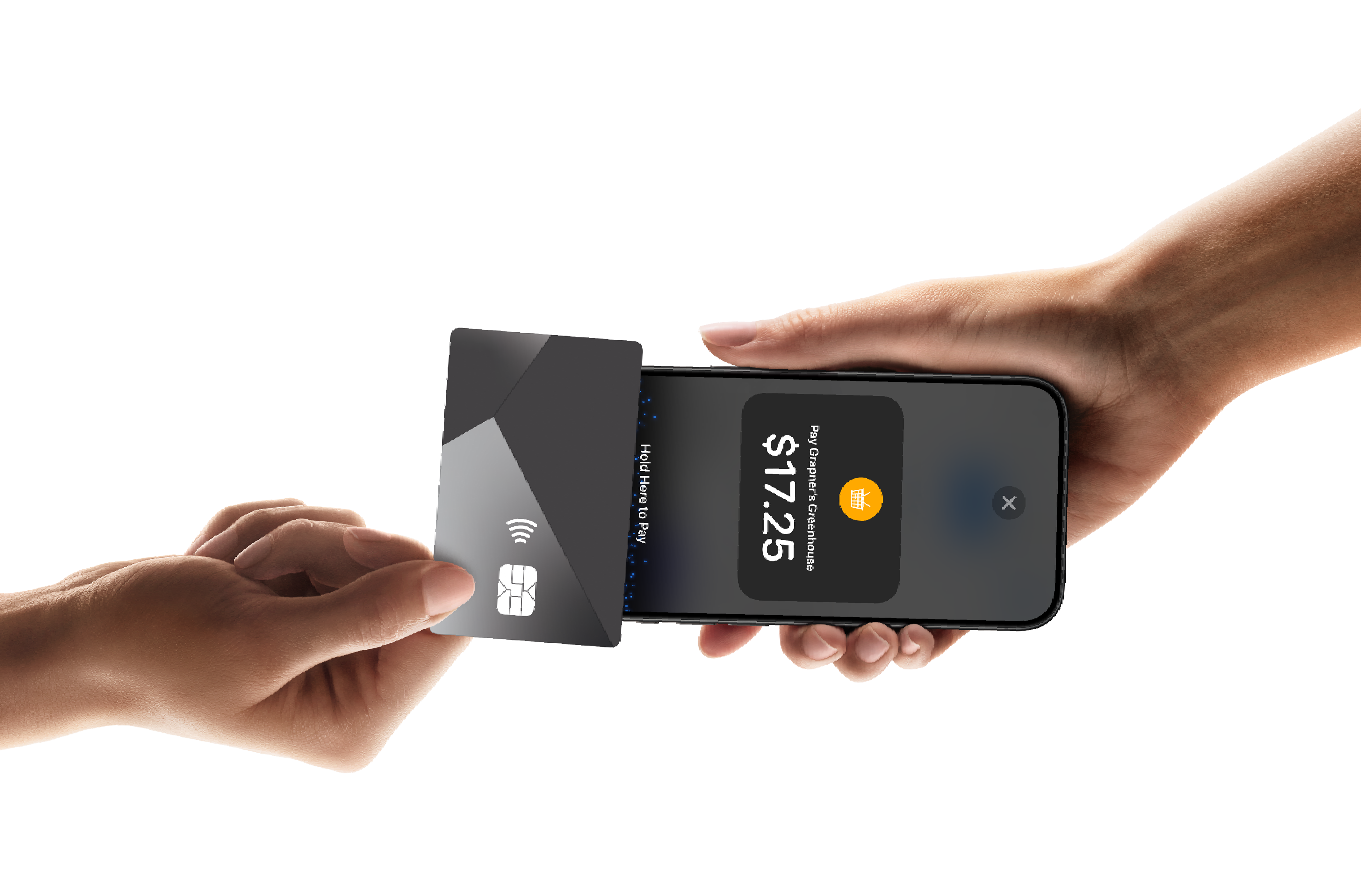
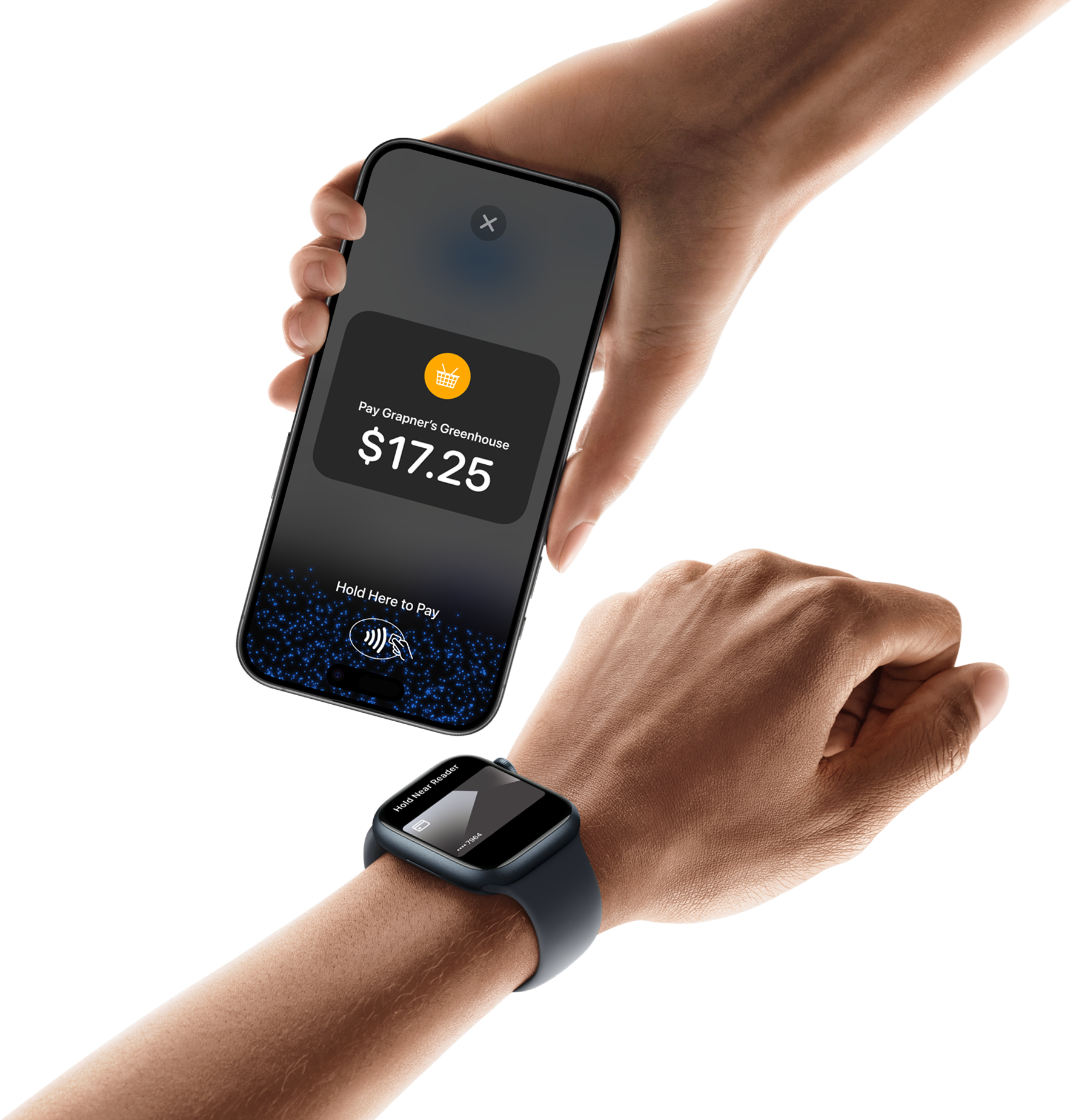
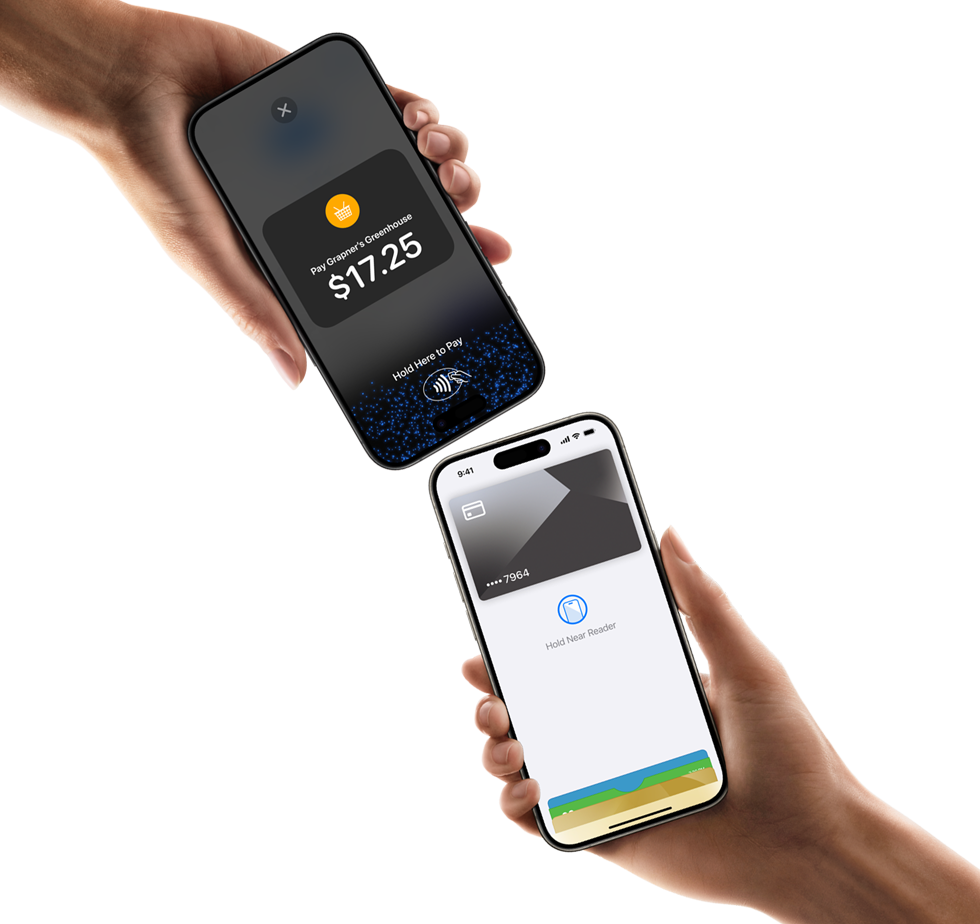
Tap to Pay on iPhone supports a wide range of contactless payment methods. This includes contactless debit and credit cards from Visa, Mastercard, and American Express, as well as Apple Pay on iPhone and Apple Watch, and other NFC-enabled digital wallets and payment services. Customers simply hold their card or device near your iPhone to complete the transaction — no swiping or inserting required.
Which industries is this useful for?
+
Tap to Pay on iPhone is ideal for any small business that takes in-person payments, especially those that invoice their customers. It’s particularly popular with businesses in beauty and wellness (hairdressers, massage therapists, personal trainers), retail (market stalls, pop-up shops, boutiques), professional services (consultants, photographers, tradespeople), and food and hospitality. If you meet clients face-to-face and want a simple way to collect payment, Tap to Pay is a great fit.
Can Tap to Pay replace payment terminals?
+
Tap to Pay on iPhone with Zoca works slightly differently to traditional payment terminals. With Zoca, you create an invoice first, then use Tap to Pay to collect the payment in person. This makes it an excellent solution for businesses that already invoice their customers and want a convenient way to accept in-person payments without investing in dedicated hardware. For high-volume retail environments with rapid point-of-sale needs, a traditional terminal may still be preferred.
Do I need to be connected to the internet to use Tap to Pay on iPhone?
+
Generally, an active internet connection (mobile data or Wi-Fi) is required to securely process and verify each transaction in real time. However, on an iPhone with iOS 18.4 or later, Tap to Pay on iPhone supports accepting transactions without connectivity using the Store and Forward mode. Ask your payment service provider about support for Store and Forward. For standard use, make sure you have reliable connectivity at your payment location.
Can I use Tap to Pay on iPhone with other payment providers connected to Zoca?
+
Currently, Tap to Pay on iPhone through the Zoca app is exclusively available with Stripe as the payment provider. If you use a different payment provider with Zoca for online payments, you’ll need to also connect a Stripe account to use the Tap to Pay feature. Setting up Stripe is free and only takes a few minutes.
How are payments processed with Tap to Pay on iPhone?
+
All payments you accept with Tap to Pay on iPhone are processed by your payment service provider (in Zoca’s case, Stripe) and then deposited to the bank account you’ve set up with that provider. Stripe is the entity you’ve registered with for payment processing and the integration behind Tap to Pay on iPhone in the Zoca app. If you have any questions about payments, speak with your payment service provider.
How do I use PIN Entry Accessibility for Tap to Pay on iPhone?
+
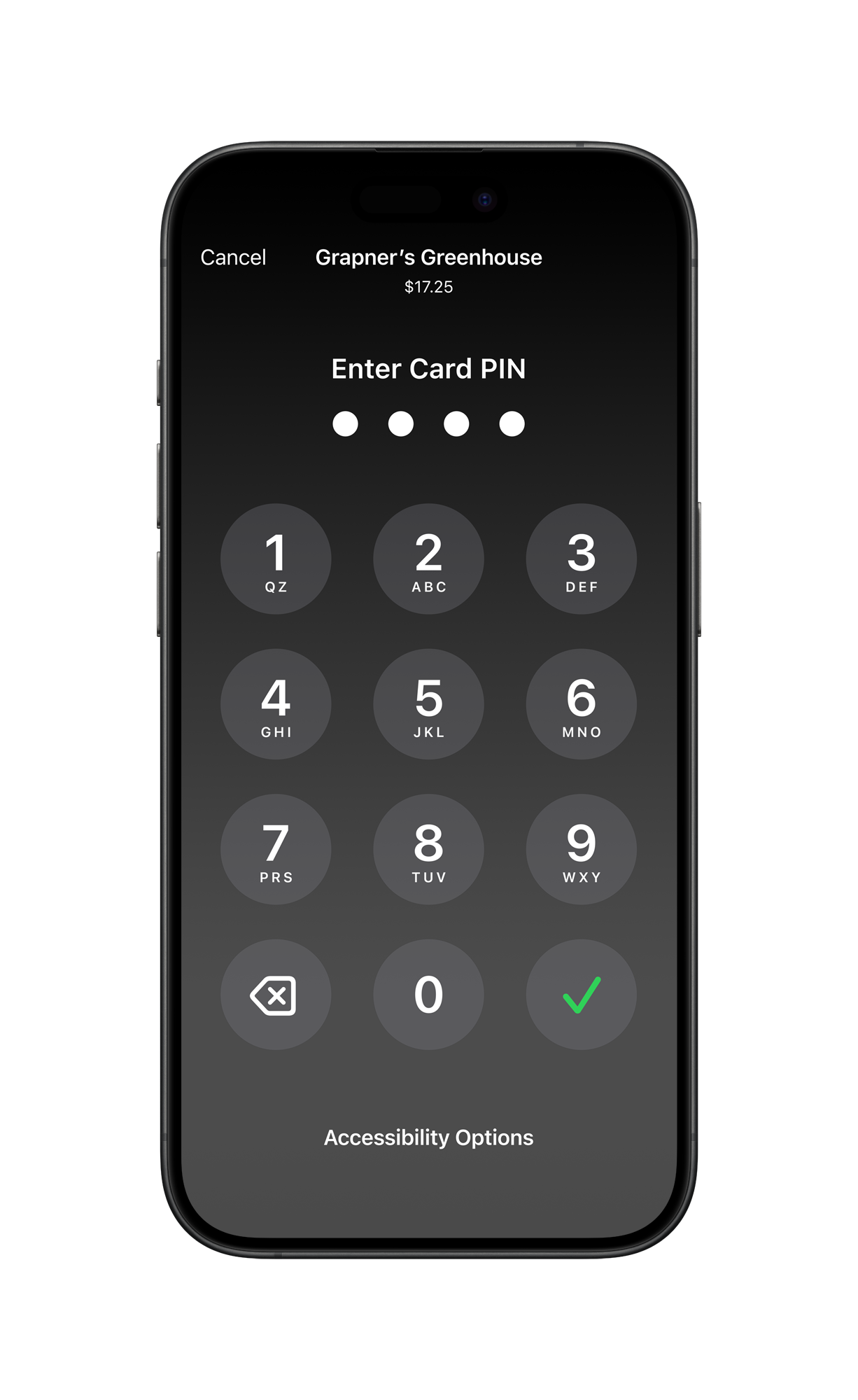
From the PIN entry screen, tap Accessibility Options to turn on the accessibility mode. The device will read out instructions. To enter your PIN, draw each digit on the screen (iOS 17.0 or later) or tap the screen for each digit — tap once for 1, twice for 2, and so on, ten times for 0. Pause between taps or drawing for each digit. To submit a PIN, swipe right with two fingers. To delete a digit, swipe left with two fingers. Double tap with two fingers to repeat instructions. To turn off accessibility mode, tap Turn Off Accessibility Options. Note: PIN entry times out after 5 minutes.
How do I keep my device secure when a customer enters their PIN?
+
You can turn on the Tap to Pay on iPhone Screen Lock setting for your payment app to lock your device screen during PIN entry. After the customer completes or cancels their PIN entry, unlock the device to continue the transaction. On your iPhone, go to Settings > [your payment app], then turn on Tap to Pay on iPhone Screen Lock.
Will using Tap to Pay on iPhone affect the battery life of my device?
+
No. Tap to Pay on iPhone won’t have a noticeable impact on battery life. You can use it throughout the day without worrying about significant additional battery drain.
How do I know if the customer’s payment card is contactless?
+
Contactless cards have an EMV Contactless Indicator — a small symbol that looks like a series of curved lines (similar to a Wi-Fi symbol turned on its side) — on the back or front of the card. If the card has this symbol, it can be used with Tap to Pay on iPhone.
What if a contactless payment card isn’t being read?
+
The performance of contactless cards can vary based on the card design, material, or antenna location. First, ask the customer to hold their contactless payment card directly on the device with the chip on the left side and the longer side of the card lined up with the edge of the tap area for several seconds. If the card still doesn’t read, ask the customer to slide the card to center the chip directly over the notch on the device. If the card remains unread without any feedback, it might have a damaged antenna or might not work with contactless payments.
What does \"Try a Different Card\" or \"Unable to Read Card\" mean?
+
This means the customer is using a contactless card that your payment service provider doesn’t support. For example, an international customer may have a card that isn’t widely accepted outside their region. Your payment service provider (Stripe, in the case of Zoca) determines which cards to accept in their Tap to Pay on iPhone configuration.
I’m getting an \"Unable to Set Up Tap to Pay on iPhone\" error about removing cards from Wallet. What do I do?
+
This error occurs during setup on a new device if there is insufficient space to load Tap to Pay on iPhone, usually caused by having too many payment cards set up in Apple Wallet. Try removing one or more cards from Apple Wallet and then try to use Tap to Pay on iPhone again.
How do I unlink a Tap to Pay on iPhone merchant ID from an Apple Business Connect account?
+
If you want to unlink a merchant ID from your Apple Business Connect account, sign into Apple Business Connect, navigate to \"Tap to Pay on iPhone,\" select the merchant ID you want to change, then select \"Remove.\"
How do I unlink a Tap to Pay on iPhone merchant ID from an Apple Account?
+
If you want to remove all Tap to Pay on iPhone merchant IDs connected to your Apple Account, visit Apple’s merchant ID removal page and sign in with your Apple Account, then select \"Remove all merchant IDs.\" Note: This method won’t work if you already have an existing Apple Business Connect account — in that case, you can only unlink merchant IDs by signing into Apple Business Connect directly.
I don’t see my merchant IDs in Apple Business Connect. What do I do?
+
Sign in to Apple Business Connect with the same Apple Account used for Tap to Pay on iPhone to view your merchant IDs and add them to your Apple Business Connect account. Make sure you’re using the correct Apple Account associated with your Tap to Pay setup.
I’m having issues with my Tap to Pay on iPhone connection in Apple Business Connect. What do I do?
+
You can submit a help request through Apple Business Connect. Sign in to your Apple Business Connect account, then select Help from the navigation bar to submit a help request to the Apple Business Connect support team.
How do I enable Tap to Pay on iPhone on an enterprise or restricted network with a firewall?
+
If you have a firewall at your place of business, you may need to configure your network to allow Tap to Pay on iPhone connections. See the section for Tap to Pay on iPhone in the Apple Support article \"Use Apple products on enterprise networks\" for the specific ports and domains that need to be allowed.
How can I provide feedback about Tap to Pay on iPhone to Apple?
+
On your iPhone with iOS 18.4 or later, go to Settings > [your payment app], then turn on Improve Tap to Pay on iPhone. This triggers periodic notifications asking for your feedback during your use of Tap to Pay, allowing you to submit feedback along with automatically captured diagnostic logs directly to Apple. If you’re not seeing the feedback notification, go to Settings > Notifications > Feedback, then turn on Allow Notifications.